



















































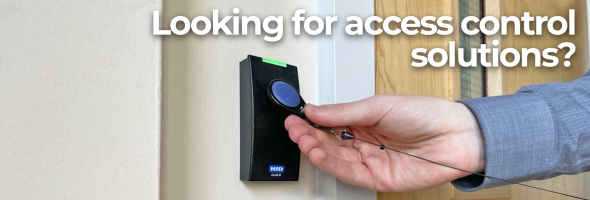


In short: Paxton Net2 for schools gives each member of staff and each student a card or fob linked to a user record. Access levels then decide which doors they can open and at what times. Staff cards can double as printed photo ID. Visitors and supply staff can be given tokens that expire automatically, while a lost card is barred from every door in a few clicks. Net2 Pro adds lockdown, fire alarm integration and roll call reports for emergencies.
Getting the most from Net2 for schools is more about planning than hardware. This use case shows how a school can organise staff and student access on Net2 using features described in Paxton's application notes. Your installer will design the doors and wiring. This guide covers the day to day decisions a school makes about who goes where.
Why choose Net2 for schools rather than a standalone system?
Paxton's standalone Switch2 is aimed at sites that do not need reports on people's movements. A school usually wants more than that: a record of who used which door, timed access for different groups and a quick way to cancel a lost card. Net2 is PC based, so every user has a record with an Events tab showing where their card was last presented.
Which Net2 tokens suit staff and students?
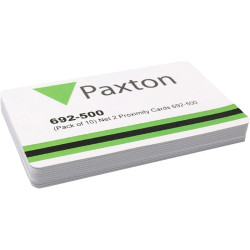
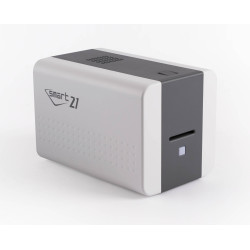
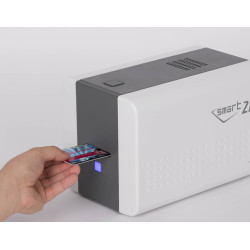
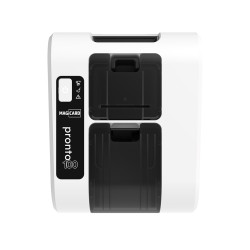
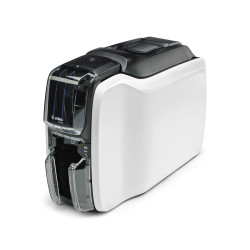
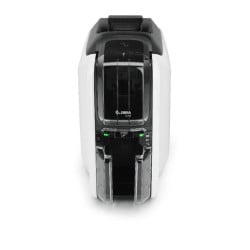
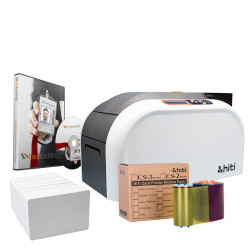
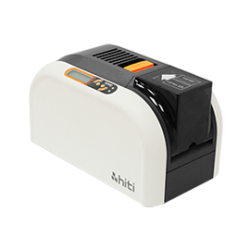
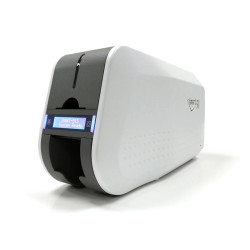
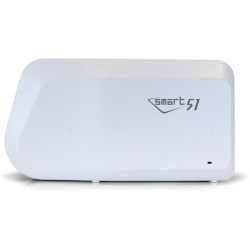
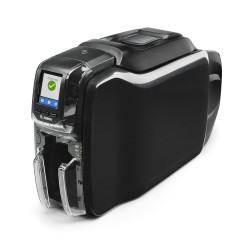
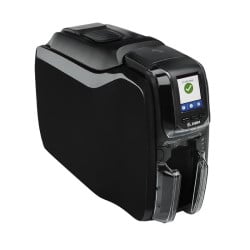
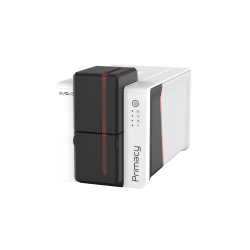
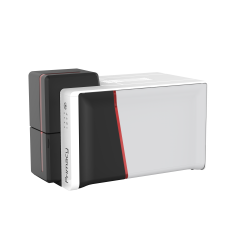
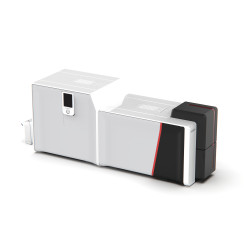
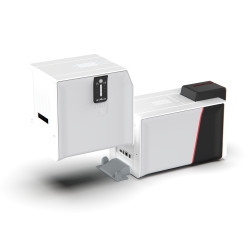
- Staff photo ID cards. Net2 ISO proximity cards can be printed on a dye sublimation ID card printer, so one card shows the photo and opens the doors. For a full staff or year group roll-out, the pack of 500 holds the same card.
- Student keyfobs. The Net2 proximity keyfob fits on a keyring or bag and Paxton rates it IPx7 for up to 30 minutes of immersion.
- Sports and pool areas. The Net2 WatchProx is rated IP67 and fits a watch or bracelet.
- Accessible entrances and car park barriers. Net2 hands-free keyfobs work with readers fitted with a hands-free interface. Paxton highlights them for gates, barriers and people with disabilities.
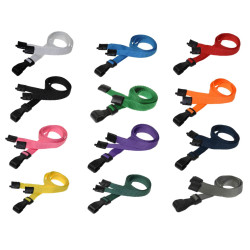
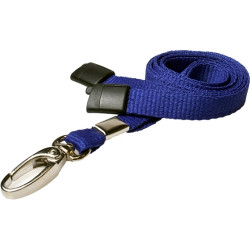
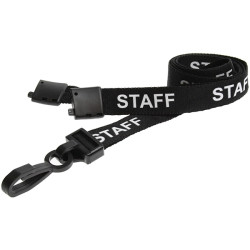
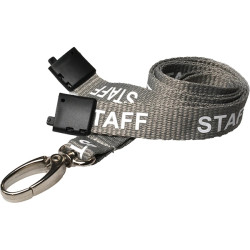
Cards are easier to check at a glance when worn on a lanyard or in a card holder.
How do you control who goes where and when?
Every Net2 user is given an access level. Each access level pairs every door with a timezone that says when that door is open to the people on that level. Net2 supports up to 250 access levels and 64 timezones.
A school might set up levels by role, which is the style Paxton suggests for personnel teams:
- Teaching staff: main entrance, staff room and classroom blocks during the working day.
- Office staff: as above plus the school office and records room.
- Students: student entrances during the school day only.
- Cleaners and site staff: wider access but at early morning and evening times.
Timezones can contain several time slots in one day, so they can allow for break times or evening classes. Public holidays can be set as dates with their own times in each timezone. Paxton suggests leaving exit (Out) readers active at all times so nobody gets shut in after hours.
How do departments help with year groups?
Departments group users together. A school can create one for each year group and one for each staff team, then drag users into them. Right-clicking a department and opening Properties lets you change the access level, start and expiry dates, card printing template and anti-passback setting for everyone in it. That makes it quick to move a whole year group onto a new access level or set an expiry date for leavers.
How should a school handle visitors and supply staff?
Every user record has Valid from and Expires end dates. Paxton's own example is a visitor card that stops working after one day, while contractors and temporary staff can be valid between set dates.
Token types make this faster. Net2 includes a Visitor type and you can add others, such as one for supply teachers, with a preset access level, expiry period, department and card template.
What happens in an emergency?
Lockdown. Net2 Professional (v4.21 or later) can put selected doors into lockdown with one action, for example an on-screen button. Lockdown disables access through those doors, including exit buttons. It also relocks doors held open by timezones. Specific users, such as senior staff, can be exempt. Because exit buttons are disabled, Paxton advises considering this carefully when planning exemptions.
Fire alarm. Net2 Professional can take a signal from the fire alarm and open chosen doors automatically. Paxton is clear that this is not fail safe on its own, because it depends on the access control system working. Fire escape doors also need a local release such as a break glass unit. Defining the escape routes and meeting the local fire officer's requirements is the responsibility of the building's owner or their architect or consultant.
Roll call. With areas set up, Net2 Pro can produce a roll call report listing everyone in an area. Users change from Missing to Safe as they present their token at a muster point reader. The report is only reliable if everyone presents their token going into and out of each controlled area.
What happens when a student or teacher loses a card?
Open their record, select the token on the Tokens tab and click Lost token. It is barred at every door at once and Net2 logs an alarm event if anyone tries it. Then issue a replacement on the same record so their access stays the same. If the card turns up, the Found button reactivates it.
How do you set up Net2 for schools step by step?
- Your installer configures the doors and readers in Net2.
- Create timezones, access levels and departments to match the school day.
- Add users. Large groups can be imported from a CSV file rather than typed in one by one.
- Enrol each token by presenting it to a Net2 USB desktop reader in the school office.
- Print staff ID cards from the user records.
If you also print student ID cards at the start of the year, read our guide to preparing ID solutions for UK enrolment.