

































































In short: Paxton's Net2 PC requirements call for a 64-bit edition of Windows 10, Windows 11 or Windows Server 2016 to 2025, with at least 8 GB of RAM, an 80 GB drive and a screen of at least 1280 x 720. Windows 11 also needs four cores and TPM 2.0. Paxton bases these figures on a Windows installation dedicated to Net2, recommends a local machine over a virtual one and does not allow the database to sit on a separate SQL server.
This guide sets out the Net2 PC requirements and wider software requirements in plain terms so you can check a PC before installation day. Everything here is taken from Paxton's Net2 compatibility and support page and its Net2 application notes. Paxton updates that page as Windows versions change, so confirm the latest position with your installer before buying hardware.
Which versions of Windows meet the Net2 PC requirements?
| Windows edition | Version listed by Paxton | End of support listed by Paxton | CPU |
|---|---|---|---|
| Windows 11 | 25H2 (latest) | Not stated | 64-bit, 4 cores / 4 threads, TPM 2.0 |
| Windows 11 | 23H2 | 2026 | 64-bit, 4 cores / 4 threads, TPM 2.0 |
| Windows 11 | 22H2 | 2025 | 64-bit, 4 cores / 4 threads, TPM 2.0 |
| Windows 10 | 22H2 (LTSC) | 14 October 2025 | 64-bit, 2 cores / 4 threads |
| Windows Server 2025 | Standard with Desktop Experience, LTSC | 2034 | 64-bit, 2 cores / 4 threads |
| Windows Server 2022 | Standard with Desktop Experience, LTSC | 2031 | 64-bit, 2 cores / 4 threads |
| Windows Server 2019 | Standard with Desktop Experience, LTSC | 2029 | 64-bit, 2 cores / 4 threads |
| Windows Server 2016 | Standard with Desktop Experience, LTSC | 2027 | 64-bit, 2 cores / 4 threads |
At the time of writing (October 2026) the end dates Paxton gives for Windows 10 22H2 and Windows 11 22H2 have already passed. For a new Net2 PC it makes sense to start on a Windows version with support still ahead of it.
Older Windows releases may still run Net2, as may older versions of the Net2 software. Paxton discourages both on security grounds. Its compatibility also depends on the latest service packs and updates being installed.
What are the Net2 PC requirements for memory, storage and display?
- Memory: 8 GB of RAM for every listed version of Windows.
- Storage: an 80 GB hard drive.
- Display: a resolution of at least 1280 x 720, with 1920 x 1080 listed as the maximum.
- Processor: 64-bit, with the core and thread counts shown in the table above.
These Net2 PC requirements assume Windows is installed only for Net2. Paxton notes that a large or busy site may need more RAM.
Can Net2 run on a virtual machine or a separate SQL server?
Paxton currently recommends installing Net2 on a local machine. It accepts that many systems run on virtual machines. For troubleshooting, though, its support team may ask for the system to be moved onto a physical PC.
Hosting the Net2 database on a separate SQL server is not supported or permitted. Paxton's reasons are that software updates can change or migrate the database and that Net2 needs its database available at all times. It is also not built to work across separate networks.
What permissions and security software affect installation?
You need administrator rights on the PC to install Net2 and standard user rights to run it.
Anti-virus and anti-spyware tools can interfere with installing any software, Net2 included. If installation runs into difficulty, Paxton suggests disabling the anti-virus software while you install. If problems continue after it is switched back on, take the issue to whoever supports that anti-virus product, because Paxton's own team cannot advise on it.
Server editions of Windows are compatible but usually need IT expertise that Paxton's support team does not provide. That applies even more to specialised versions of an operating system.
What network does Net2 need?
Net2 devices with an Ethernet port, such as a TCP/IP RS485 interface or a Net2 I/O board, work on IEEE 802.3 Ethernet networks that support 10BaseT at 10Mbps over IPv4.
Traffic between the Net2 software, the server and the I/O boards uses ports 6474 to 6485 inclusive. A TCP/IP RS485 adaptor also uses ports 10001 and 30718. Net2 combines TCP and UDP, so any router that filters or forwards ports needs to allow for this.
Wherever Net2 data crosses the public internet, Paxton recommends a VPN. On internal networks that may be vulnerable, it advises secure VLANs. Network design and configuration should be handled by a competent person, as it falls outside Paxton's support.
How should the Net2 PC be secured?
Paxton's network security application note recommends:
- a machine dedicated to the Net2 server, with no other software beyond network monitoring tools
- physical access to that machine limited to authorised staff
- critical operating system updates kept current on server and client machines, with virus protection on clients
- Net2 clients installed on machines without email or chat software
- commissioning mode switched off once the system is commissioned, which locks the control units to that server
- secure mode for the strongest set-up, running server and client on one machine and blocking inbound connections on SQL server port 1433
From Net2 v5.04 Service Release 2, a new installation asks you to set your own System Engineer password at first logon. The old default password can no longer be used.
Which desktop reader works with which Net2 version?
- Net2 USB desktop reader 514-326: Net2 v3.09 or later, with MIFARE support from v4.15.
- Net2 proximity and magstripe desktop reader 350-910: Net2 v3.09 or later.
- Net2 desktop reader with keyboard output 214-326: Net2 v3.09 or later, with MIFARE support from v4.17.
Each one is powered over USB. After plugging a reader in, stop and restart the Net2 server program so the software picks it up.
How do you activate Net2 Pro?
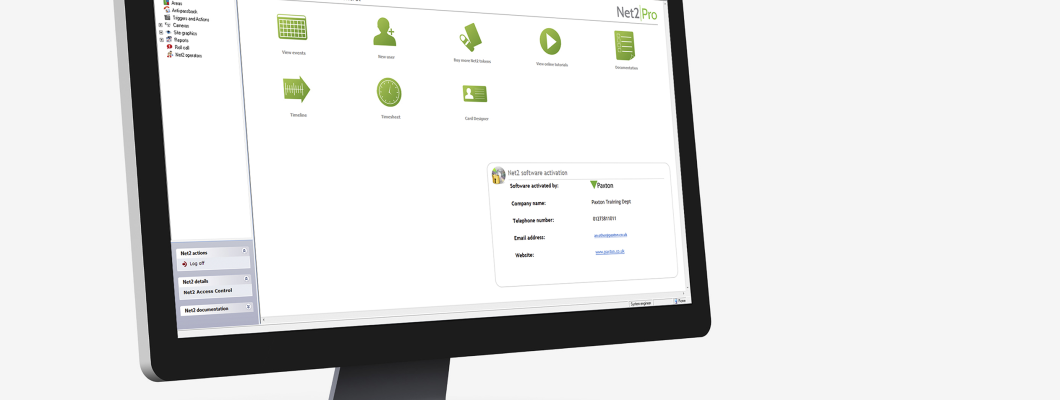
When Net2 starts for the first time it asks for a Pro licence key and an installer key. If the server can reach the internet, activation happens automatically. Offline activation needs a call to Paxton support. Cancelling the prompt leaves the system running as Net2 Lite. Upgrading a database older than Net2 V5 is a job for Paxton technical support.
How do you move Net2 to a new PC?
Paxton's process for changing the Net2 PC is:
- In the Net2 Server Configuration Utility on the old PC, open the Database tab and click Create Copy to save the database as a zip file.
- Install the same Net2 version on the new PC and run it once.
- Close the Net2 software and server on both PCs.
- Copy the Net2Database.zip file into C:\Net2 Access Control on the new PC.
- In the Configuration Utility on the new PC, click Import Copy on the Database tab and select the zip file.
- Open Net2 and check that all your data is there before you move any hardware.
- For RS485 networks, move the data line to the new PC. TCP/IP and wireless control units must be rediscovered in the Configuration Utility, because that information is held on the PC rather than in the database.
Net2 also makes its own regular backups to C:\Net2 Access Control\Backup. Paxton recommends copying that folder to another location on a regular basis and restoring the System and Events backups together as a pair from the same day.
What support does Paxton give for Net2?
Paxton's technical support team advises installers and system users on installing and using the Net2 software, before and after commissioning. Most installations need no help. When unusual problems arise, resolving them can take several calls over a few days.
If you have questions about the Net2 PC requirements for a particular site, your installer is the right first contact. Advice from Paxton on PC hardware, operating systems, networks or non-Paxton software is informal and does not replace the professional skills your installer should provide. For the cards, fobs and readers that go with your system, see our Paxton range.