























































In short: To enrol Net2 cards and fobs, plug a Net2 desktop reader into the PC that runs Net2, then restart the Net2 server. Present a new card or fob to the reader and Net2 opens the Add User form with the token number already filled in. Type the person's name, choose an access level and click Add user. The token works at the doors that access level allows.
The steps below follow Paxton's application notes and desktop reader instructions. They cover adding a new user, giving an existing user a second token and what to do if you do not have a desktop reader.
What do you need before you start?
- The Net2 software, installed and running, with an operator login.
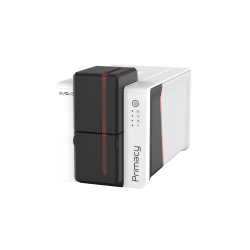
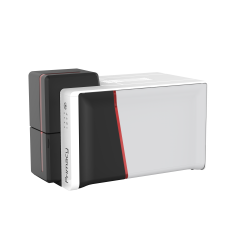
- A Net2 desktop reader. The Net2 USB desktop reader 514-326 reads Paxton, EM and MIFARE tokens (MIFARE by serial number only). The proximity and magstripe desktop reader 350-910 adds magnetic stripe cards.
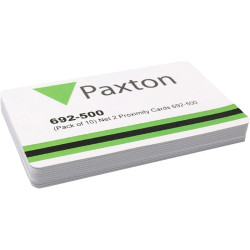
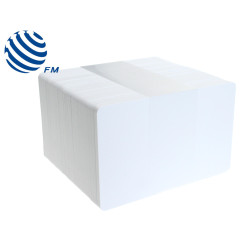
- New tokens such as Net2 ISO proximity cards or Net2 proximity keyfobs.
- Access levels already set up. Paxton's recommended order for a new system is doors first, then areas (Net2 Pro), timezones, access levels and departments, with users added after that.
Desktop readers need Net2 v3.09 or later. MIFARE support needs v4.15 or later on the USB desktop reader 514-326.
How do you connect the Net2 desktop reader?
- Plug the reader into a free USB port on the Net2 PC using the cable supplied. It takes its power from the USB port, so no other connection is needed.
- Stop the Net2 server program, then start it again. The reader is now available to Net2.
You can fit desktop readers at more than one workstation if several people issue tokens.
How do you enrol Net2 cards for a new user?
- Present the new token. With Net2 running, hold the unused card or fob over the desktop reader. The Add User form opens with the token number entered.
- Enter the user's name. The name is the only field you must fill in. You can also add a telephone number, department and personnel number.
- Set the dates if needed. Use Valid from and Expires end for temporary staff or contractors. Expires end is inactive by default, so mark it as active and pick a date from the calendar.
- Add a photo if you want one. Get Picture imports an image file in bmp, jpg, gif, wmf or emf format. If a webcam is installed (Net2 server v4.11 or later), a Capture Picture button lets you take the photo at the desk.
- Pick an access level from the list. Paxton advises keeping individual permissions for emergencies or tests, because they do not appear in the access level tree and are harder to keep track of.
- Click Add user. Net2 saves the record and clears the form ready for the next person. Click Close to finish and go to the record you entered last.
How do you check the new token works?
- Present the token to the desktop reader again. Because Net2 now knows it, the user's record opens instead of the Add User form.
- Open the Current validity tab in the user record. Readers where the user is valid are highlighted and the rest are greyed out.
- Try the token at a door it should open.
If the door does not open, look at the reader LEDs. A flashing red LED means the token was read but refused, so check the user's access level and Expires end date. If the reader shows no reaction at all, try the token at another reader that you know works. If any user changes were made, click Apply on the user record so they are sent to the door controllers.
How do you enrol Net2 cards or fobs for an existing user?
A Net2 user can hold more than one token. Open the user's record, go to the Tokens tab and either type the token number or present the new token at the desktop reader. Right-click the key icon to change the token style shown for that token, for example keyfob or ISO card.
How can token types speed up enrolment?
Token types are templates that fill in fields for a group of users. Net2 includes Default and Visitor types. To create your own, click Token types in Options or use the New type button in the Add User form. Then click Add and name it. You can preset:
- Valid from and Expires end dates
- a department
- an access level
- the default card template used for printing
- any of the 16 user detail fields
Click Apply to save the token type. Choosing it in the Add User form then fills in those details for each new user.
What if you use the desktop reader with keyboard output?
The Net2 desktop reader with keyboard output 214-326 types the token number wherever the cursor is on screen. It does not open the Add User form by itself. Open the new user window manually, click into the token number field and then present the token. If the cursor is in the wrong place, the number lands in the wrong field.
Can you enrol Net2 cards without a desktop reader?
Yes, through Paxton Connect Admin or the Net2Online web interface. Hold the new token to any Net2 reader on site, where it is refused and logs an "access denied, unknown credential" event. Then open the user's record, choose Add token, select From an event and pick that event. You can also choose Manual entry and type the token number.
If you are adding a large group, Net2 can import user records from a CSV or TXT file instead of entering each person by hand.
Need more tokens or a reader? See our Paxton cards, Paxton fobs and card readers.